The Seating Chart Bottleneck
You've seen it at every event: twenty guests crowded around a single board, squinting at tiny text, trying to find their name on an alphabetical list while blocking everyone behind them.
The traditional seating chart display creates a bottleneck right when guests arrive — the moment when you want everything to feel smooth and welcoming.
A digital seating chart solves this by putting the information on every guest's phone. Scan a QR code, search your name, see your table. No crowd, no squinting, no confusion.
Step 1: Build Your Guest List
Everything starts with an accurate guest list. You need each guest's full name (as they'd recognize it — "Mike" not "Michael" if that's what everyone calls him) and their table assignment.
Three ways to get this into a seating tool:
- CSV import — Export from your RSVP tool or spreadsheet, then import. Fastest for 100+ guests.
- Manual entry — Type names directly. Fine for smaller events under 50 guests.
- Copy from spreadsheet — Some tools let you paste directly from Excel or Google Sheets.
Tip: Include plus-ones with their actual names if you have them. "Mike Johnson +1" works but "Mike & Sarah Johnson" is a much better guest experience.
Step 2: Organize Tables
There are two approaches to table assignment:
Manual Assignment
You know your guests — who gets along, who doesn't, which friend groups cluster together. Drag-and-drop interfaces let you move guests between tables visually.
The rules most planners follow:
- Keep couples and families together
- Mix friend groups slightly to encourage new connections
- Place elderly relatives near speakers (not right next to them)
- Keep the wedding party close to the head table
- Separate exes (check twice)
AI-Assisted Assignment
Some platforms offer AI suggestions that consider party size, relationships, and group dynamics. You'll always want to review and adjust, but it's a strong starting point — especially for events over 100 guests where manual optimization is tedious.
Step 3: Choose Your Display Format
Digital seating charts work in two formats:
Searchable List
Guests type their name and see their table number. This is the simplest format and works well for events with standard round tables.
Pros: Fast, works on any phone, minimal data needed. Cons: Guests only see their table number — no visual context of where the table is in the room.
Visual Room Layout
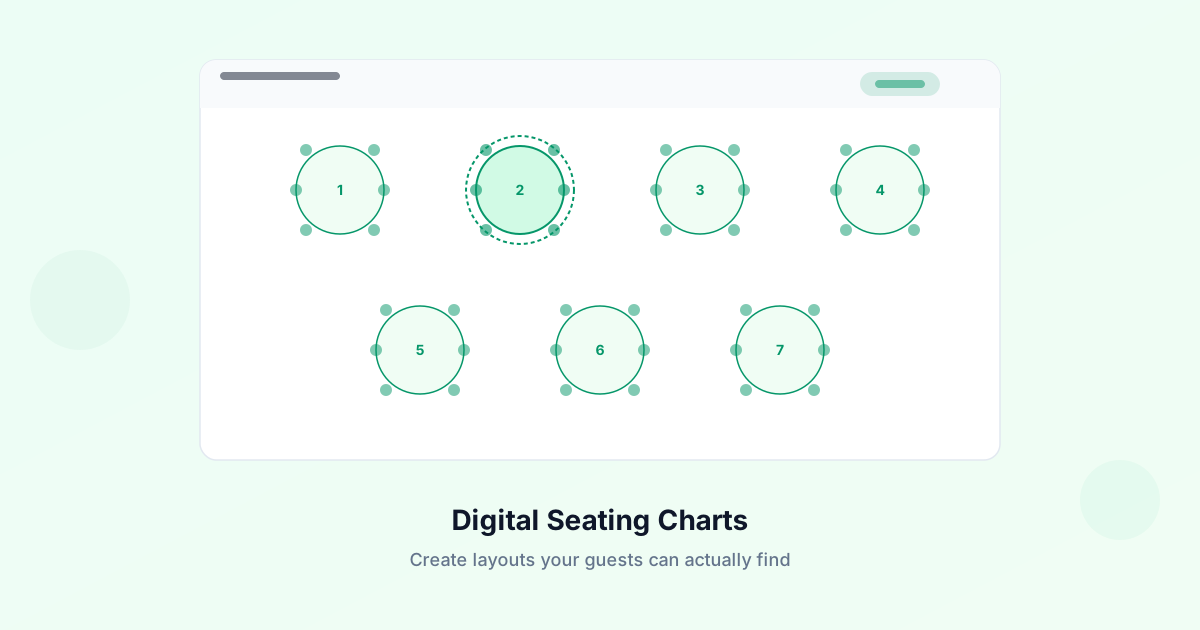
A top-down view of the venue with labeled tables. Guests search their name and see their table highlighted on the map.
Pros: Guests know exactly where to go — no wandering. Cons: Requires the organizer to set up the room layout (table positions, shapes, labels).
The best approach is offering both: a quick name search that shows the table number, with an optional tap to see the full room layout.
Step 4: Make It Accessible via QR Code
The seating chart only works if guests can find it. The QR code should appear in three places:
- Venue entrance — Large printed sign (at least 11" x 17") with a clear "Find Your Seat" heading
- Welcome table — Where guests pick up place cards or programs
- Cocktail hour area — Guests often check seating during drinks before entering the reception
QR code sizing guide:
| Scanning Distance | Minimum QR Size | |---|---| | 1-2 feet (table card) | 1.5 inches | | 3-5 feet (tabletop sign) | 3 inches | | 6-10 feet (standing sign) | 5 inches | | 10+ feet (large display) | 8+ inches |
Step 5: Handle Last-Minute Changes
This is where digital seating charts save the day. Someone cancels. A plus-one gets added. Two guests who were supposed to sit together just broke up.
With a printed seating chart, you're reprinting the entire board. With a digital chart, you make the change and it's live instantly — every guest's phone shows the updated version.
Common last-minute scenarios:
- Guest cancellation → Remove from table, chart updates automatically
- New plus-one → Add guest, assign to table with space
- Table reassignment → Drag guest to new table
- Table count change → Add or remove a table from the layout
Step 6: Print Backup Materials
Digital-first doesn't mean digital-only. Print these as backup:
- Place cards at each seat (guests who skip the QR code still find their spot)
- One printed seating chart on an easel for guests who prefer the traditional approach
- Table numbers visible from across the room
The combination of digital access and physical backup means no guest is left wandering.
Common Mistakes to Avoid
Using only first names. If you have three Sarahs, guests can't tell which table is theirs. Always use full names.
Forgetting plus-ones. Every guest who RSVPed with a plus-one should see both names when they search.
No physical backup. Some guests won't scan the QR code. Place cards and a printed chart ensure nobody feels excluded.
Tiny QR codes. A 1-inch QR code on a sign across the room won't scan. Match the size to the scanning distance.
Not testing. Scan every QR code yourself before the event. Check that names are spelled correctly and table assignments are accurate.
Setting Up a Digital Seating Chart with GuestQR
GuestQR combines digital seating with physical printables:
- Import your guest list via CSV or manual entry
- Create your room layout with the drag-and-drop editor
- Assign seats manually or with AI suggestions
- Generate QR-accessible seating that guests search from their phone
- Download matching printables — place cards, table numbers, and a large-format seating chart, all in the same design
Everything stays synced. Change a seat assignment and both the digital chart and downloadable printables update.
Create a seating chart guests can search from their phone
Visual room layout, name search, and matching printables — all connected. Free for up to 50 guests.