The Same App, Never the Same Look
A baby shower and a black-tie wedding should not feel like the same software with the names swapped. In GuestQR they don't. A few theming controls let each event carry its own color, mood, and identity — and that look follows guests through every screen, not just the welcome page.
Here's everything you can theme, and how to set it.
Pick an Accent Color
The single biggest lever is the accent color. It's the rule across the top of the welcome card, the buttons, the icons, the status dot — the thread that ties the experience to your palette. GuestQR ships with eight presets:
Rose · Violet · Blue · Teal · Pink · Emerald · Gold · Slate
The same welcome screen, four different accents — notice how much the color alone changes the feeling:
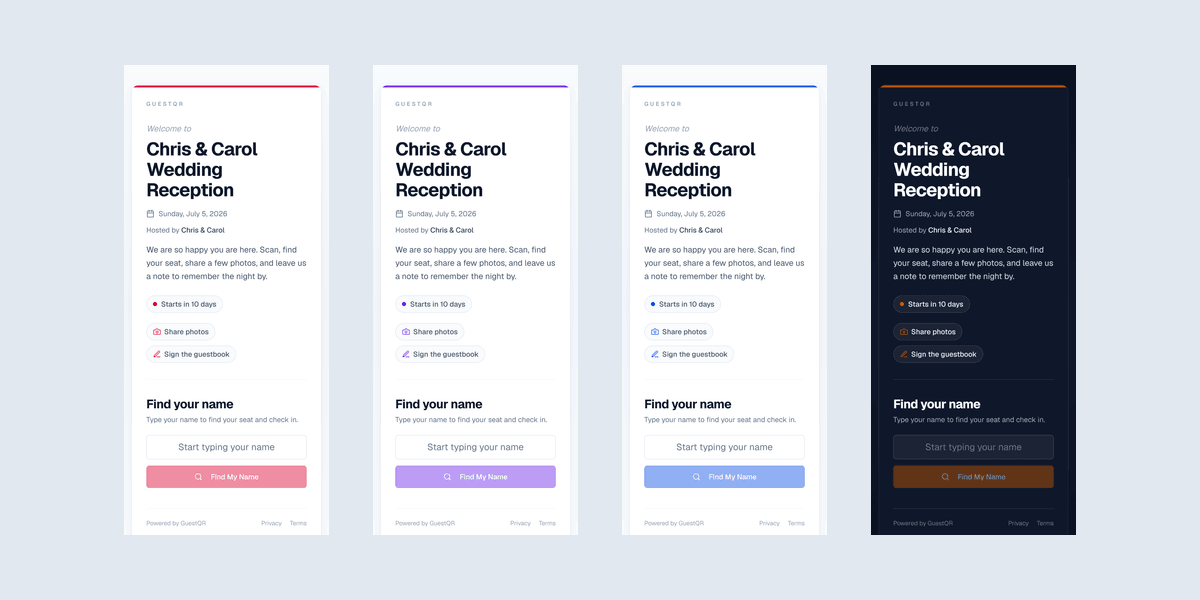
Set it in Customize Guest Experience — in your event's sidebar — and pick the dot that fits your event. The live preview shows the change on a guest's phone as you click.
Switch On an Evening (Dark) Welcome
For receptions, galas, and anything after sunset, flip the Evening (dark) welcome screen toggle. The welcome card swaps to a deep midnight palette that feels dramatic on a phone in a dimly lit venue — especially paired with the gold accent.
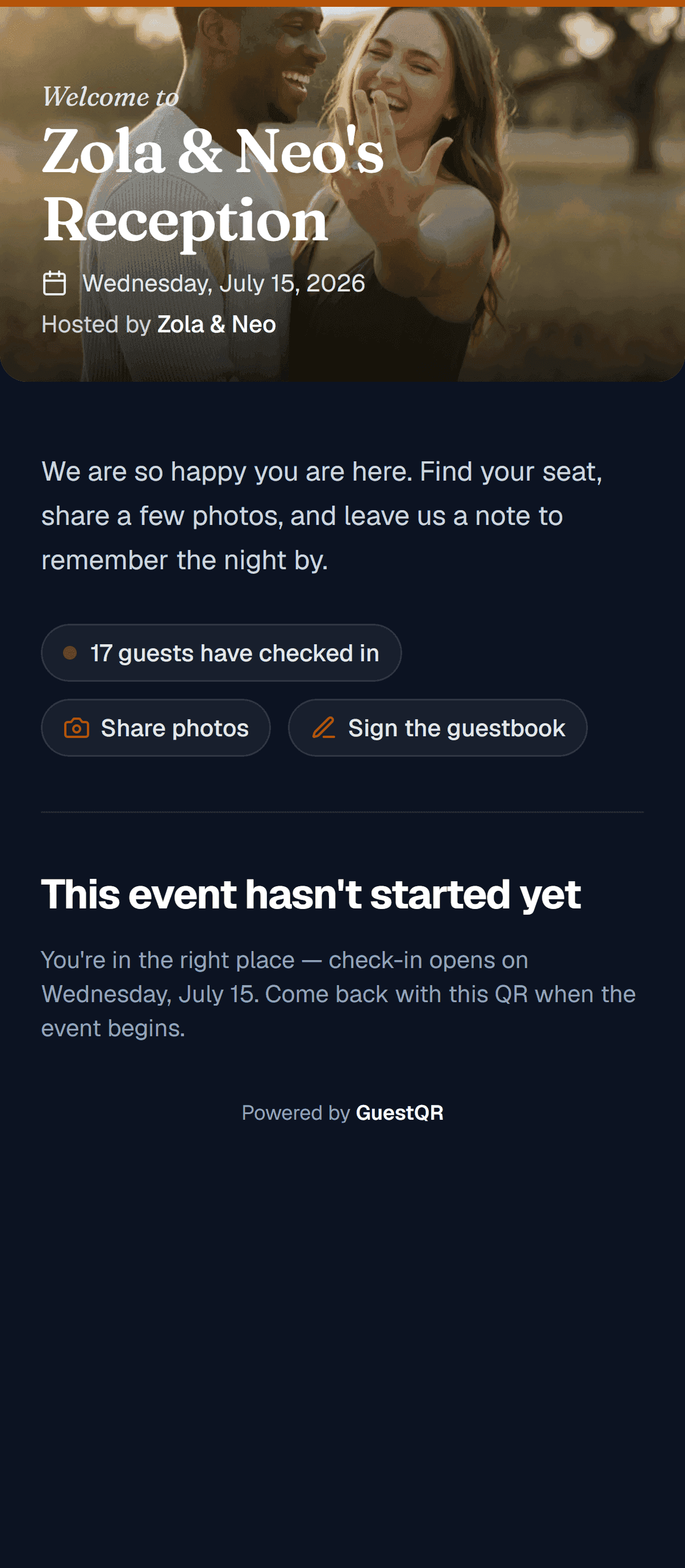
Add a Cover Image
A cover image turns the welcome screen into a photo-led moment. Upload one in the Customize studio and your event name, date, and hosts sit over the image with a soft gradient — the digital equivalent of a beautifully designed entrance sign. No cover image? GuestQR falls back to a clean, typographic header that still looks intentional.
Write the Words That Greet Guests
Two small fields do a lot of work:
- Host names — "Hosted by the Bennett family" under the event title.
- Welcome message — a sentence or two that greets every guest. Use it to set the tone and point guests at what to do ("Share a photo, find your table, and sign the guestbook").
Together with the accent color, these turn a generic check-in page into your event's front door.
The Theme Follows Guests Everywhere
This is the part people underestimate. Your accent color doesn't stop at the welcome screen — it carries through the whole guest area. The buttons on the photo gallery, the icons on the guest home, the highlights in the guestbook all pick up your color, so the experience feels designed from the first scan to the last.
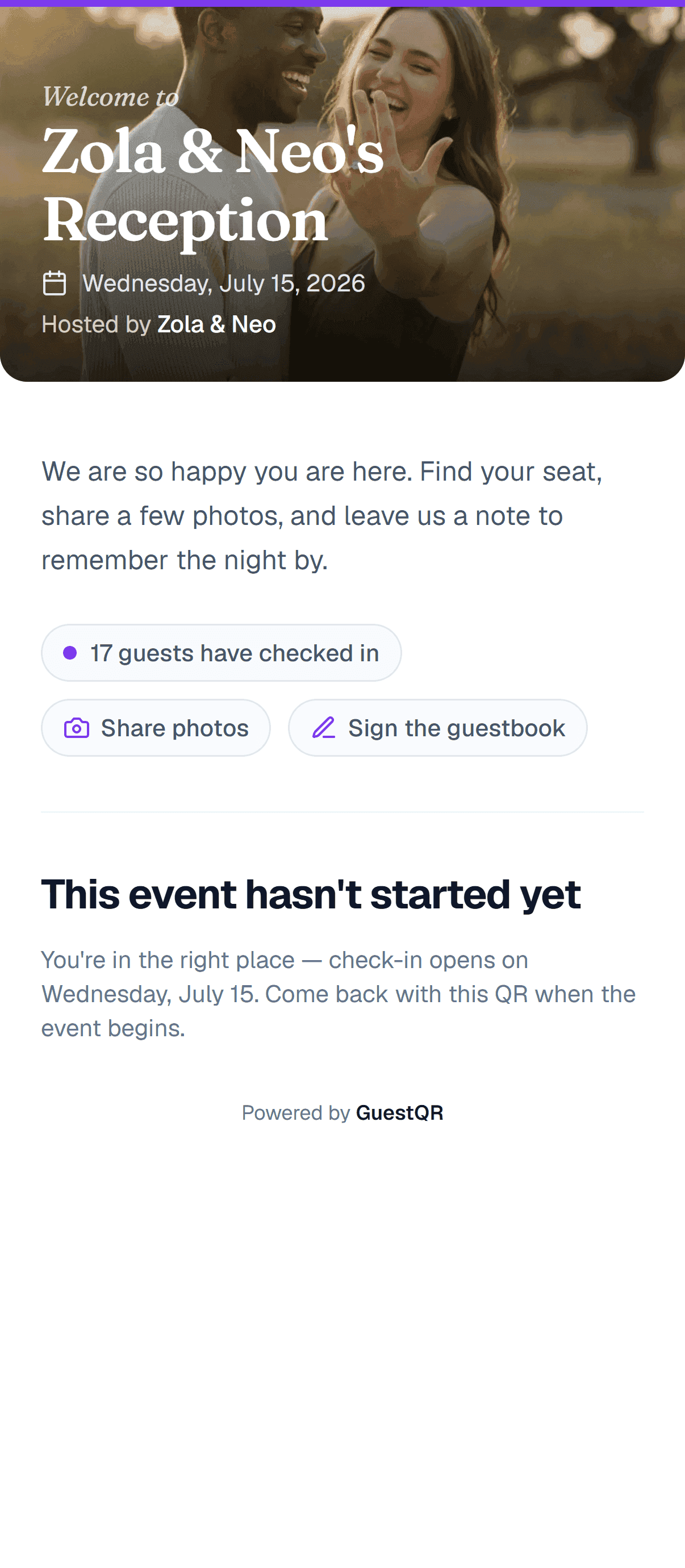
Where You Set It All
Theming lives in Customize Guest Experience — accent color, evening mode, cover image, welcome layout, host names, and welcome message, all next to a live preview of what guests see. The feature switches live there too — the door, photos, the live wall, videos, guest downloads, and the guest book — so you can theme the event and decide what guests can do in the same pass. Settings keeps the details (name, venue, date) and links straight to the studio.
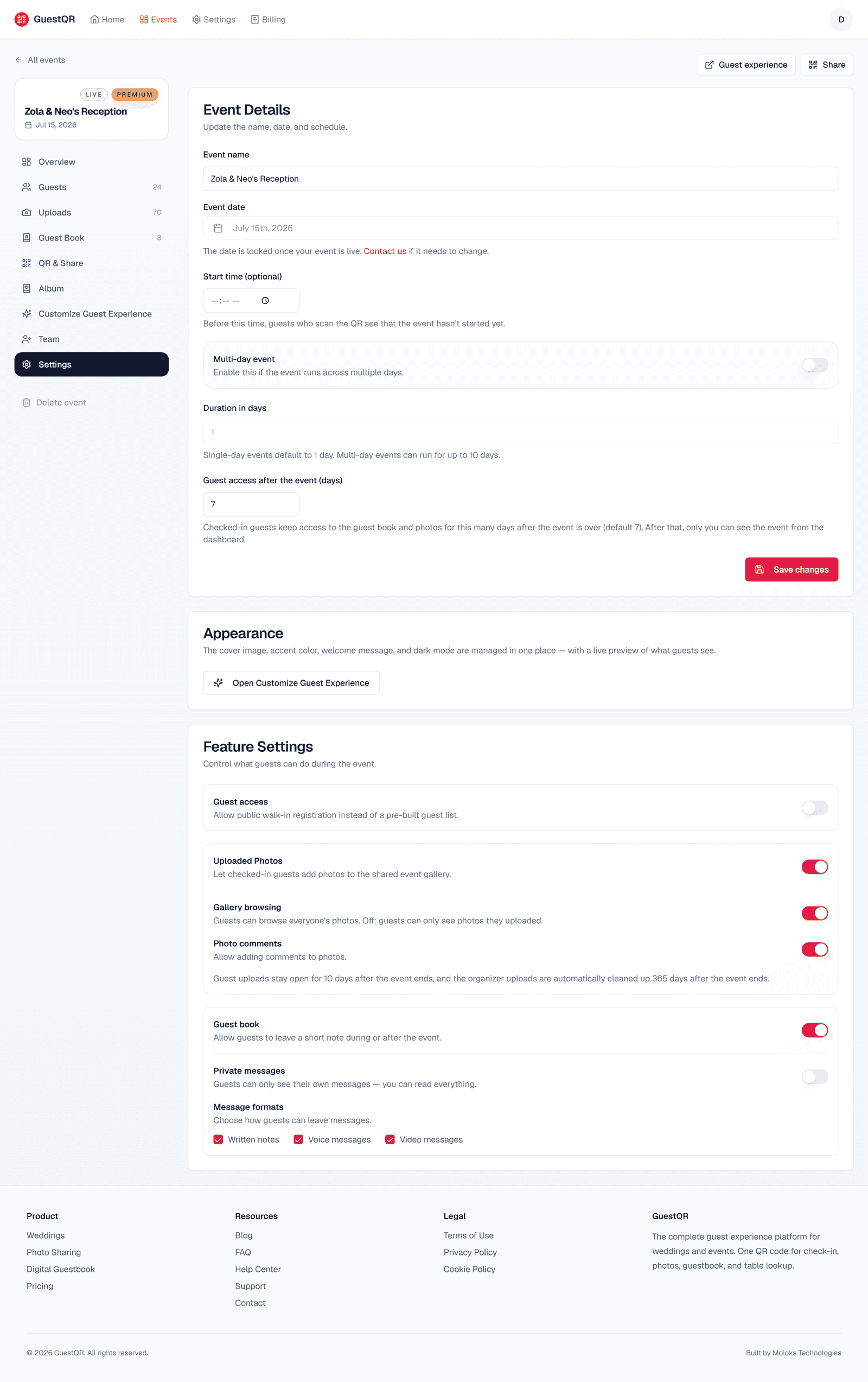
Carry the Theme to Paper
The last step is to make the printed materials agree with the screen. When you print your own QR cards and signs, pick paper and type in the same palette as your accent — soft pastels for a shower, deep navy and gold for an evening wedding, restrained ivory for a memorial — and the table cards and signage complete the look your welcome screen started.
Make the event look like yours
Set a color, switch on evening mode, add a cover image, and watch the theme carry through every guest screen. Free to start, no card required.
Frequently Asked Questions
Can I use a custom color outside the eight presets?
The presets cover the most-used palettes and are designed to stay legible against both light and dark backgrounds. Start there — they're tuned to look good everywhere the accent appears.
Does the dark welcome make the whole app dark?
It styles the welcome screen for evening and low light. Your accent color continues to carry the theme through the rest of the guest area.
Do I need a cover image?
No. Without one, GuestQR uses a clean typographic welcome that still looks polished. A cover image just makes the entrance more photo-led.